Starting Out with Superfile
This blog post provides information about Superfile, a file system browser that runs in the Linux console. There's also apparently a Windows install process. I'll try to update this post periodically with shortcuts that I find most useful.
Originally published as:
This year, I have been making the transition from Windows to Linux this year, and I assume that many others will do the same. In fact, I think I've booted to Windows only when I had an issue with printing and when I was looking for some old files. I think this means it's easier to switch to Linux these days than you might think.
I don't necessarily recommend the Fedora distribution, but that's what I'm using, so that's what I'll describe. Relative to the File Explorer application on Windows, I have not been especially impressed with the Files application on Fedora. Maybe it would help for me to learn its keyboard shortcuts, but I find it to be overly mouse-intensive. Additionally, I've always liked console applications.
Recently, I learned of Superfile, which is apparently an written in go that works in the text-only console rather than the windowing system, although it opens files in windowing applications when needed. There are other drawbacks, such as the inability to drag and drop files and no context menu for files, but also several advantages for common operations.
To start the Terminal application that provides a console, I:
- Press the
Windowskey to run an application. - Type
termto select the Terminal application. - Ensure that the Terminal application is selected (in case I may have installed something else that contains term).
- Press
ENTERto launch Terminal. - Press
F11to toggle full screen mode (optional). Actually, I pressedCTRL+SHFT+?and changed this shortcut fromF11toALT+Enterto match my habits from Windows.
To install Superfile:
bash -c "$(curl -sLo- <https://superfile.dev/install.sh)">
For access rights, the installer should prompt for your password.
I haven't tried it, but to uninstall, run this and ignore an error (which file exists may depend on whether you used sudo to install it).
rm /usr/local/bin/spf ~/.local/bin/spf
To start Superfile:
spf
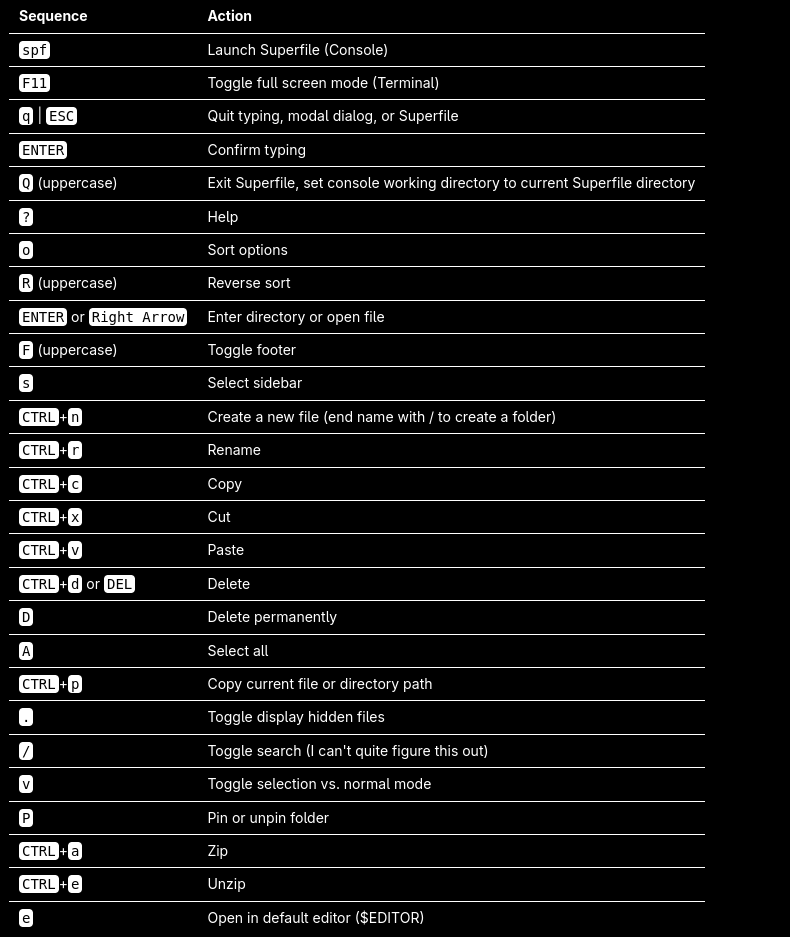
| Sequence | Action | Sequence | Action |
|---|---|---|---|
spf | Launch Superfile (Console) | F11 | Toggle full screen mode (Terminal) |
q / ESC | Quit typing, modal dialog, or Superfile | ENTER | Confirm typing |
Q (uppercase) | Exit Superfile, set console working directory to current Superfile directory | ? | Help |
o | Sort options | R (uppercase) | Reverse sort |
ENTER or Right Arrow | Enter directory or open file | F (uppercase) | Toggle footer |
s | Select sidebar | CTRL+n | Create a new file (end name with / to create a folder) |
CTRL+r | Rename | CTRL+c | Copy |
CTRL+x | Cut | CTRL+v | Paste |
CTRL+d or DEL | Delete | D (uppercase) | Delete permanently |
A (uppercase) | Select all | CTRL+p | Copy current file or directory path |
. | Toggle display hidden files | / | Toggle search (I can't quite figure this out) |
v | Toggle selection vs. normal mode | P (uppercase) | Pin or unpin folder |
CTRL+a | Zip | CTRL+e | Unzip |
e | Open in default editor ($EDITOR) |
I updated my bash configuration (~./.bashrc) to define the alias code VSCodium and set EDITOR to that editor.
alias code='flatpak run com.vscodium.codium'
export EDITOR='flatpak run com.vscodium.codium'